


Get your cryptocurrency logo included in Metamask – the world’s most popular crypto wallet. With over 10 million users, Metamask gives your token unprecedented visibility.
How to Add Token Logo in Metamask
You’re not alone if your attempt at adding a token logo to your Metamask wallet has been unsuccessful. In this tutorial, all approaches for adding a coin logo to Metamask, whether your altcoin is BEP20 or ERC20, are presented. Also, use steps for adding a token logo in the Trust Wallet.
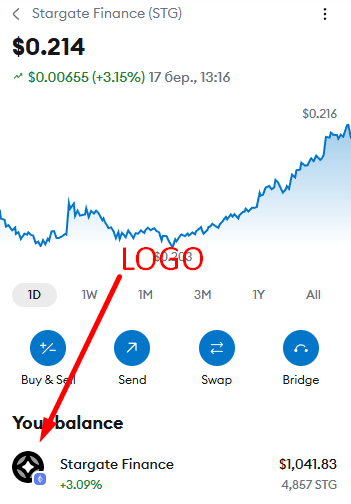
The difference between tokens that do and do not show logos in Metamask’s list of assets.
What is Metamask?
Metamask is a digital currency wallet that allows people to interact with dApps, mostly with Ethereum and Ethereum-based blockchains. Apart from a Chrome, Firefox, Opera, and Brave browser-installable browser extension, it has a downloadable version from AppStore and Google Play for mobile devices.
Advantages
Metamask now has over 10 million users worldwide. Therefore, having a token’s logo in Metamask is essential in crypto promotion. With the simple or advanced method, your token logo can be displayed before over 10 million Metamask users worldwide.
Also, consider expanding to such networks as the Ethereum protocol, the Arbitrum network, and the Sonic blockchain. Besides, the BNB Smart Chain, the Base network, the Polygon blockchain, and the Pulschain ecosystem will help in reaching more audiance.
Ease of use
One of the most important advantages of Metamask is that it possesses a highly user-friendly, easy-to-use interface. Beginners can comfortably start with cryptocurrency using Metamask.
Compatibility with dApps
Metamask is compatible with numerous decentralized applications (dApps) across the Ethereum platform. This has made it a favorite among developers wishing to create user-centric DAPPs.
Adding the Token Logo
There are four ways in which a token’s logo can be included in Metamask. We shall group them in two: the advanced way and the basic way. A primary distinction is that the “basic” method is capable of supporting logotype in order to carry out transfers in your Metamask wallet. As a result, you avoid phishing.
Simple Way
There exist three easy ways of adding a token’s logo in Metamask.
Notice that all of them edit existing tokens in your wallet, which can be used in order to phish you. Approve only if you’re sure that you want to edit what these tokens mean.
Coingecko
1st Option: A user (you) go to your token page in Coingecko and click the Metamask icon. Note: an asset must be in Coingecko’s list. Also, refer to the images below with a step-by-step example.
- To add logo, go to your token page in Coingecko.
- To add token logo in Metamask, visit your coin page in Coingecko and click Metamask icon.

- Verification of logo enablement through Metamask wallet.
- Approve the logins using Metamask wallet.
- Done: logo is visible while sending
- Good job! The logo is now visible while sending coins from your Metamask account.
- still no logo in asset list However, the logotype is invisible FOR ALL PERSONS in the ASSETS list in Metamask. Use the “Advanced” method (see below) in order to fix it.
Note. When in the MetaMask Mobile app, use the in-app browser, rather than your native phone browser.
CoinMarketCap
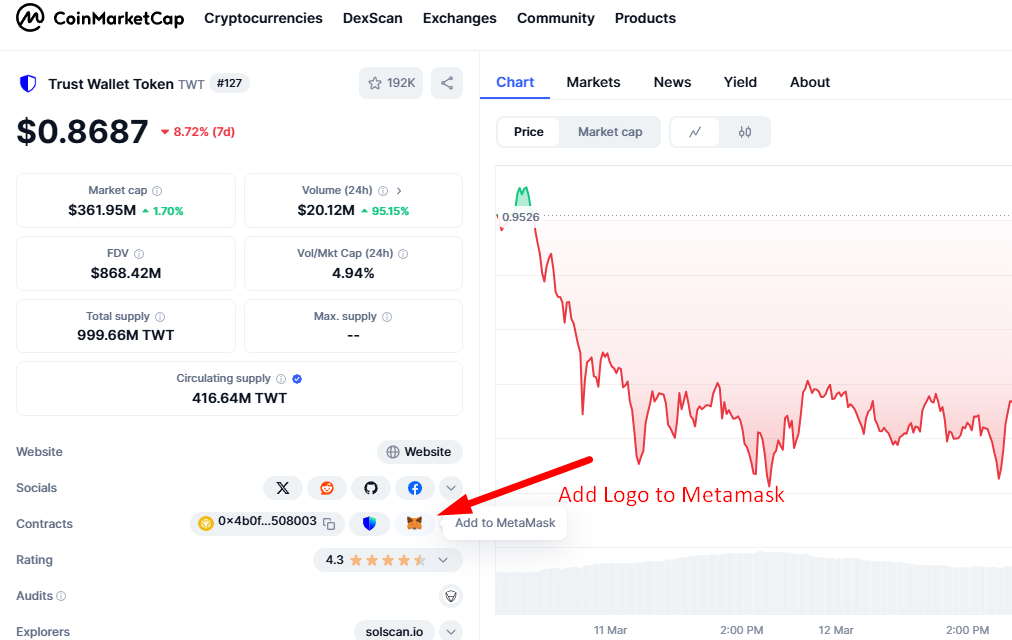
2nd Option. A user (you) go to your token page on CoinMarketCap (learn how to acquire a token’s page on CMC) or use our service for it and click the Metamask icon. Tip: a coin must be listed on CoinMarketCap.
Alternative way to add coin logo to Metamask via CMC
Open your coin page in CoinMarketCap and click Metamask icon.
Etherscan / Bsc
3rd Option. A user (you) goes to your token BSCscan/Etherscan page and click the Metamask icon. Tip: a coin logotype should be visible on Etherscan or Bscscan. Learn how to achieve that requirement here.
In this way, you can spread this guide among your community so that they can be persuaded to add a logotype through Etherscan or BscScan and avoid phishing.
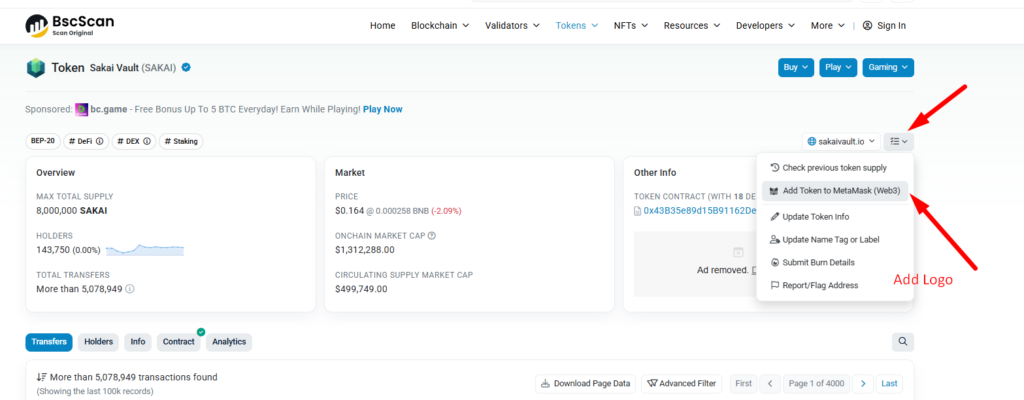
Alternative way to add coin logo to Metamask via Coin-Explorer
Open your coin page in Etherscan or BscScan and click Metamask icon.
If your cryptocurrency is built on the Ethereum and BSC networks, the user has to comply with any one of the three methods (explained above) separately for each blockchain type. For instance, in order to begin viewing a BEP20 currency icon, a user would first need to switch a network in his Metamask to Binance Smart Chain. Similarly, in order for a user to view the logo of the ERC20 coin in his wallet, he should switch it to the Ethereum network.
Elegant Manner
But, of course, every token issuer would wish his currency logotype to be shown in front of all people in Metamask by default. Despite the fact that there is no straightforward way to add a token logo in Metamask, it is possible nonetheless. Do the following in order for your desire to be fulfilled:
Step 1: List your currency on exchange so that it is visible on CoinMarketCap as early as possible.
2nd step: Enable Circulation supply in CMC.
Step 3: Rank a coin more highly in order to be in the top 500 coins (from CMC’s list of assets).
The easiest way to rank up is by growing the market cap of the coin. You can grow the token price and/or circulation supply. A token’s logo, therefore, will be shown by all the users that desire to send the coin. But the logotype will be missing from the list of assets if your currency is in TOP500. Also, note that Metamask team supports displaying logotypes for very stable assets alone. That is the reason, by default, ETH, BNB, USDT, etc., logotypes show up in your purse without any efforts from your end.
How MetaMask Gets Token Price
Price Data Source: MetaMask does not directly obtain prices; it retrieves token price data from a third-party API. Specifically, MetaMask is interfaced with the CoinGecko database for token data. When a token is listed in CoinGecko (and is actively traded), MetaMask is able to display its current market price and a fiat equivalent (e.g., USD) in addition to your token balance.
Update Frequency: The prices update periodically (at regular intervals, e.g., not every few minutes) and not in real-time tick-by-tick. MetaMask updates with updated prices at regular intervals, or when the wallet is reopened, from CoinGecko’s feed. Manual refreshing is not required; as long as MetaMask is online, it updates prices in the background.
Restrictions in Built-in Tracking: MetaMask built-in tracking is limited to tokens that CoinGecko supports. Your token is very new, is obscure, or is not in CoinGecko (or CoinMarketCap), in which event, MetaMask may display no price whatsoever. In that case, you’ll be presented with just the token amount with no fiat equivalent (it may display as $0.00). This does not imply that the token is worthless – it is just that MetaMask does not know anything about the token’s price.
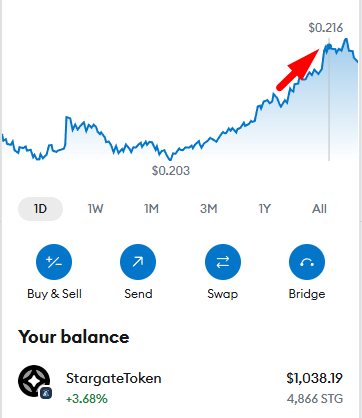
MetaMask does not support all tokens: until a token is indexed by CoinGecko, MetaMask won’t be in a position to acquire its worth
Also, MetaMask does not offer prices for mainnet tokens; in the test networks or non-listed custom networks, fiat prices may be unavailable by design. So, MetaMask price display is third-party-dependent. It is very good for mainstream tokens, but for non-mainstream tokens, the price is either non-existent or behind.
Conclusion
Adding your token logo to Metamask is important in order to promote your cryptocurrency. With the simple or advanced method, your token logo can be placed in front of millions of Metamask users worldwide. Don’t delay – add a token logo to Metamask today! Also, learn about the best coin-tracking systems.


